> ## Documentation Index
> Fetch the complete documentation index at: https://v3.captaindata.com/llms.txt
> Use this file to discover all available pages before exploring further.
# Get Run Results with n8n
> Step-by-step guide to fetching Captain Data job results using n8n.
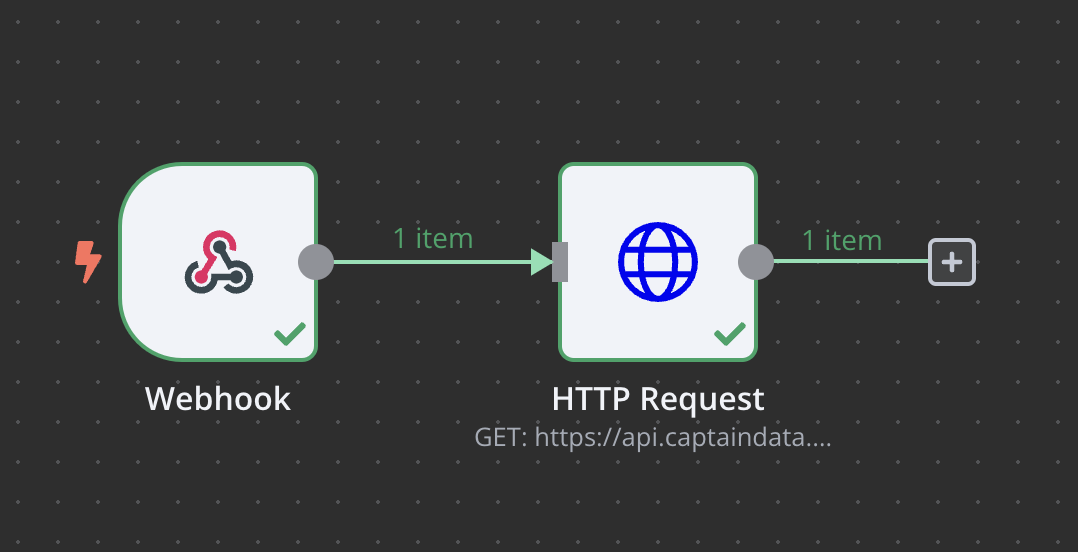 Once you have these two steps, you can then push the data anywhere you want by adding modules that will update the data in your outreach tool, CRM, spreadsheets, etc.
The following Guideflow will show you how to automatically receive your Captain Data job results in n8n using a Webhook and the `HTTP Request` module using [Get a Run's Results](/v3/api-reference/runs/get-job-results).
### 1. Import the Blueprint
Copy and paste the following JSON into **n8n** to create your workflow:
```json
{
"name": "My workflow",
"nodes": [
{
"parameters": {
"httpMethod": "POST",
"path": "58bedae1-79d5-4255-818f-a435b40cca15",
"options": {}
},
"type": "n8n-nodes-base.webhook",
"typeVersion": 2,
"position": [0, 0],
"id": "0c21b50e-c495-4c33-b209-c0e4c60b2ff5",
"name": "Webhook",
"webhookId": "58bedae1-79d5-4255-818f-a435b40cca15"
},
{
"parameters": {
"url": "=https://api.captaindata.co/v3/jobs/{{ $json.body.job_uid }}/results",
"authentication": "genericCredentialType",
"genericAuthType": "httpHeaderAuth",
"sendHeaders": true,
"headerParameters": {
"parameters": [
{
"name": "x-project-id",
"value": "YOUR_PROJECT_ID"
}
]
},
"options": {}
},
"type": "n8n-nodes-base.httpRequest",
"typeVersion": 4.2,
"position": [220, 0],
"id": "ba305839-7c86-4d0d-a20e-fcb850ec88fe",
"name": "HTTP Request"
}
],
"connections": {
"Webhook": {
"main": [
[
{
"node": "HTTP Request",
"type": "main",
"index": 0
}
]
]
}
},
"active": false,
"settings": {
"executionOrder": "v1"
},
"versionId": "3d65a722-8467-4859-a068-0685349ae87d"
}
```
### 2. Configure Captain Data
* Navigate to **Captain Data** and go to the **Webhook** tab.
* Add the webhook URL from **n8n** to the associated job.
### 3. Configure n8n's HTTP Module
* Go to **[your general settings](https://app.captaindata.co/settings)** in Captain Data.
* In **n8n's HTTP module**, update the following:
1. **Header Authentication**: Add your API key.
2. **Header Parameters**: Include your **Project ID** (`x-project-id`).
Once you have these two steps, you can then push the data anywhere you want by adding modules that will update the data in your outreach tool, CRM, spreadsheets, etc.
The following Guideflow will show you how to automatically receive your Captain Data job results in n8n using a Webhook and the `HTTP Request` module using [Get a Run's Results](/v3/api-reference/runs/get-job-results).
### 1. Import the Blueprint
Copy and paste the following JSON into **n8n** to create your workflow:
```json
{
"name": "My workflow",
"nodes": [
{
"parameters": {
"httpMethod": "POST",
"path": "58bedae1-79d5-4255-818f-a435b40cca15",
"options": {}
},
"type": "n8n-nodes-base.webhook",
"typeVersion": 2,
"position": [0, 0],
"id": "0c21b50e-c495-4c33-b209-c0e4c60b2ff5",
"name": "Webhook",
"webhookId": "58bedae1-79d5-4255-818f-a435b40cca15"
},
{
"parameters": {
"url": "=https://api.captaindata.co/v3/jobs/{{ $json.body.job_uid }}/results",
"authentication": "genericCredentialType",
"genericAuthType": "httpHeaderAuth",
"sendHeaders": true,
"headerParameters": {
"parameters": [
{
"name": "x-project-id",
"value": "YOUR_PROJECT_ID"
}
]
},
"options": {}
},
"type": "n8n-nodes-base.httpRequest",
"typeVersion": 4.2,
"position": [220, 0],
"id": "ba305839-7c86-4d0d-a20e-fcb850ec88fe",
"name": "HTTP Request"
}
],
"connections": {
"Webhook": {
"main": [
[
{
"node": "HTTP Request",
"type": "main",
"index": 0
}
]
]
}
},
"active": false,
"settings": {
"executionOrder": "v1"
},
"versionId": "3d65a722-8467-4859-a068-0685349ae87d"
}
```
### 2. Configure Captain Data
* Navigate to **Captain Data** and go to the **Webhook** tab.
* Add the webhook URL from **n8n** to the associated job.
### 3. Configure n8n's HTTP Module
* Go to **[your general settings](https://app.captaindata.co/settings)** in Captain Data.
* In **n8n's HTTP module**, update the following:
1. **Header Authentication**: Add your API key.
2. **Header Parameters**: Include your **Project ID** (`x-project-id`).