> ## Documentation Index
> Fetch the complete documentation index at: https://v3.captaindata.com/llms.txt
> Use this file to discover all available pages before exploring further.
# Launch a Workflow with n8n
> Set up and automate workflows with Captain Data in n8n.
Check out this guide to learn how to configure the ‘HTTP Request’ module for launching a workflow with Captain Data in n8n:
### Prerequisites
Before setting up the module, ensure you have a **data source** in place. This could be:
* A **CRM** (e.g., HubSpot)
* A **spreadsheet** (e.g., Google Sheets)
* **Notion**
* A workflow launched from **Slack**
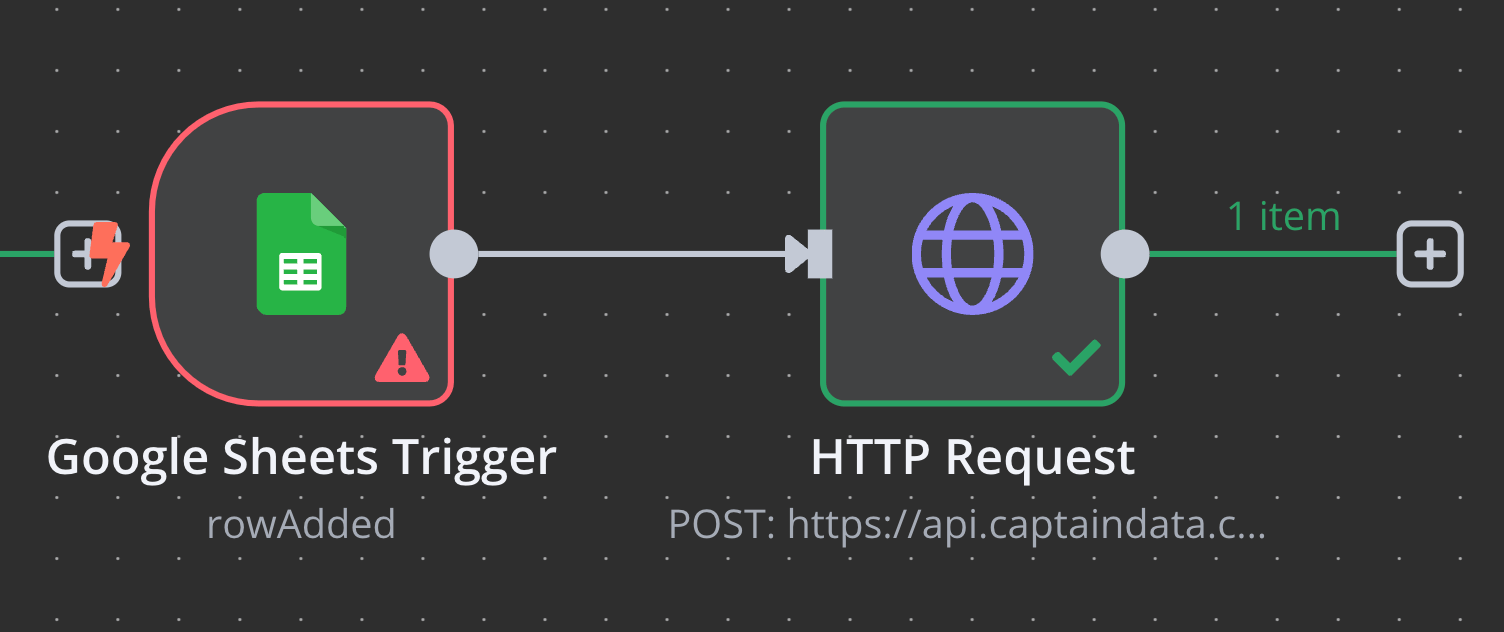
Captain Data does not natively support triggering a workflow when a new row is
added to a spreadsheet. To achieve this, use **n8n’s Google Sheets Trigger
Module** (`rowAdded`).
 ### 1. Import the Blueprint
Copy and paste the following JSON into **n8n** to create your workflow:
```json
{
"name": "My workflow 2",
"nodes": [
{
"parameters": {},
"type": "n8n-nodes-base.manualTrigger",
"typeVersion": 1,
"position": [0, 0],
"id": "38ce240e-5ef9-46de-90a8-f46be3977c6d",
"name": "When clicking ‘Test workflow’"
},
{
"parameters": {
"method": "POST",
"url": "https://api.captaindata.co/v3/workflows/{{your_workflow_id}}/schedule",
"authentication": "genericCredentialType",
"genericAuthType": "httpHeaderAuth",
"sendHeaders": true,
"headerParameters": {
"parameters": [
{
"name": "x-project-id",
"value": "YOUR_PROJECT_ID"
}
]
},
"sendBody": true,
"specifyBody": "json",
"jsonBody": "{\n \"steps\": [\n {\n \"accounts\": [],\n \"parameters\": {\n \"max_results\": 10,\n \"only_extract_unique_profile\": false\n },\n \"output_column\": null,\n \"accounts_rotation_enabled\": true,\n \"step_uid\": \"5de5a752-88cb-4974-93a9-943bd9d301c3\"\n }\n ],\n \"unstructure_meta\": false,\n \"inputs\": [\n {\n \"linkedin_people_search_url\": \"https://www.linkedin.com/search/results/people/?keywords=Solution%20Engineer&origin=GLOBAL_SEARCH_HEADER&sid=1LL\"\n }\n ],\n \"job_name\": \"Json example to send on api point to schedule.\"\n}",
"options": {}
},
"type": "n8n-nodes-base.httpRequest",
"typeVersion": 4.2,
"position": [220, 0],
"id": "c68dae83-ed5d-4696-b5e7-10d9fc6ee1b9",
"name": "HTTP Request"
}
],
"connections": {
"When clicking ‘Test workflow’": {
"main": [
[
{
"node": "HTTP Request",
"type": "main",
"index": 0
}
]
]
}
},
"active": false,
"settings": {
"executionOrder": "v1"
},
"versionId": "593d4e5f-7b55-48d5-9540-dbe0790e3896"
}
```
### 2. Configure Captain Data
* Navigate to **Captain Data** and **copy the workflow ID**.
* Paste it into the **HTTP module's URL** in n8n.
### 3. Configure n8n's HTTP Module
* Go to **[your general settings](https://app.captaindata.co/settings)** in Captain Data.
* In **n8n's HTTP module**, update the following:
1. **Header Authentication**: Add your API key.
2. **Header Parameters**: Include your **Project ID** (`x-project-id`).
### 1. Import the Blueprint
Copy and paste the following JSON into **n8n** to create your workflow:
```json
{
"name": "My workflow 2",
"nodes": [
{
"parameters": {},
"type": "n8n-nodes-base.manualTrigger",
"typeVersion": 1,
"position": [0, 0],
"id": "38ce240e-5ef9-46de-90a8-f46be3977c6d",
"name": "When clicking ‘Test workflow’"
},
{
"parameters": {
"method": "POST",
"url": "https://api.captaindata.co/v3/workflows/{{your_workflow_id}}/schedule",
"authentication": "genericCredentialType",
"genericAuthType": "httpHeaderAuth",
"sendHeaders": true,
"headerParameters": {
"parameters": [
{
"name": "x-project-id",
"value": "YOUR_PROJECT_ID"
}
]
},
"sendBody": true,
"specifyBody": "json",
"jsonBody": "{\n \"steps\": [\n {\n \"accounts\": [],\n \"parameters\": {\n \"max_results\": 10,\n \"only_extract_unique_profile\": false\n },\n \"output_column\": null,\n \"accounts_rotation_enabled\": true,\n \"step_uid\": \"5de5a752-88cb-4974-93a9-943bd9d301c3\"\n }\n ],\n \"unstructure_meta\": false,\n \"inputs\": [\n {\n \"linkedin_people_search_url\": \"https://www.linkedin.com/search/results/people/?keywords=Solution%20Engineer&origin=GLOBAL_SEARCH_HEADER&sid=1LL\"\n }\n ],\n \"job_name\": \"Json example to send on api point to schedule.\"\n}",
"options": {}
},
"type": "n8n-nodes-base.httpRequest",
"typeVersion": 4.2,
"position": [220, 0],
"id": "c68dae83-ed5d-4696-b5e7-10d9fc6ee1b9",
"name": "HTTP Request"
}
],
"connections": {
"When clicking ‘Test workflow’": {
"main": [
[
{
"node": "HTTP Request",
"type": "main",
"index": 0
}
]
]
}
},
"active": false,
"settings": {
"executionOrder": "v1"
},
"versionId": "593d4e5f-7b55-48d5-9540-dbe0790e3896"
}
```
### 2. Configure Captain Data
* Navigate to **Captain Data** and **copy the workflow ID**.
* Paste it into the **HTTP module's URL** in n8n.
### 3. Configure n8n's HTTP Module
* Go to **[your general settings](https://app.captaindata.co/settings)** in Captain Data.
* In **n8n's HTTP module**, update the following:
1. **Header Authentication**: Add your API key.
2. **Header Parameters**: Include your **Project ID** (`x-project-id`).