> ## Documentation Index
> Fetch the complete documentation index at: https://v3.captaindata.com/llms.txt
> Use this file to discover all available pages before exploring further.
# Get Run Results with Zapier
> Step-by-step guide to fetching Captain Data job results using Zapier.
Ready to pull your job results from Captain Data and automate your workflow with Zapier? We’ve got you covered! With just a few simple steps, you’ll be retrieving data in no time.
What we'll do:
1. Set up a **Webhook** to catch job results automatically.
2. Use a **GET Request** to fetch those results.
3. **Test** it all to make sure it works smoothly.
Let’s dive in!👇
## Setting Up a Webhook
First things first, let’s set up a webhook that will trigger when your Captain Data job is complete. Here’s how:
* **Choose the "Catch Hook" event** in Zapier. This event will wait for the job data and trigger automatically when your job is done. No manual checking required! ✨
* Go to the **Test tab** in Zapier. You’ll find a **Webhook URL**—copy that and paste it into your Captain Data workflow webhook configuration.
⚡ Now, you're all set to receive your job results automatically!
## Creating a GET Request
Now, let’s set up the GET request in Zapier to retrieve those results:
```bash
https://api.captaindata.co/v3/jobs/{job_uid}/results
```
The **Job UID** can be found in the output from the webhook step. Make sure to
select the correct value in the GET request step. This is crucial for fetching
the right data!
Basic Auth and Headers:
* You’ll find this information in the **API Playground** of your Captain Data workflow.
* **Basic Auth** can stay empty. But **Headers** need to be filled in like this:
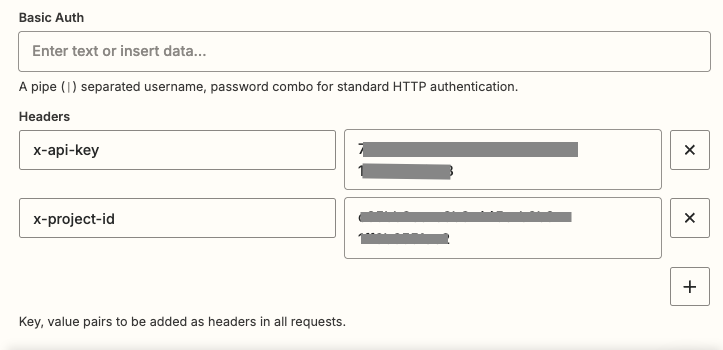 Don't forget to double-check your API keys and headers—this ensures that your
request is authenticated and accurate!
## Testing Your Setup
Ready to test it out? 🚀
* Head over to the **Test tab** in Zapier. If everything’s set up correctly, you’ll see the results from your Captain Data job right there! 🎉
* Now, you can send those results to your favorite apps—like your CRM, Google Sheets, or any other service you use to manage your data. 🌟
Don't forget to double-check your API keys and headers—this ensures that your
request is authenticated and accurate!
## Testing Your Setup
Ready to test it out? 🚀
* Head over to the **Test tab** in Zapier. If everything’s set up correctly, you’ll see the results from your Captain Data job right there! 🎉
* Now, you can send those results to your favorite apps—like your CRM, Google Sheets, or any other service you use to manage your data. 🌟
 And that’s it! With just a few steps, you’ve now automated the process of fetching job results using Zapier. Happy automating! If you run into any issues, don’t hesitate to reach out. 😊👨💻