> ## Documentation Index
> Fetch the complete documentation index at: https://v3.captaindata.com/llms.txt
> Use this file to discover all available pages before exploring further.
# Implementation Guide to Build LinkedIn Campaigns
> Comprehensive guide to implementing LinkedIn campaigns using automation.
If you're looking to build your own LinkedIn sequence system, you're in the right spot. This article is solely dedicated to implementing every required automation to smoothly run a sequence.
## Overall Architecture
### Requirements
* Follow the article [Adding & Managing Users](/v3/users-accounts/add-manage-users).
* Have a clear understanding of your data model.
To build campaigns, you need a combination of three stages, each with its own business logic:
1. **Sequence Initialization**:
* Enrich the leads to send a sequence to.
* Identify the lead's connection degree with the user sending the sequence.
* Schedule connection requests.
2. **Detect Accepted Connection Requests**:
* This process is scheduled on Captain Data and repeats at a frequency of your choice (recommended: every 3 hours).
* Detect connection requests that have been accepted.
3. **Sequence Running**:
* Logic for sending messages and detecting replies.
### Prerequisites
Before starting, ensure the following:
* The LinkedIn account of the user sending the sequence is connected.
* You have access to the LinkedIn profile URL of the leads for the sequence.
### Schemas Legend
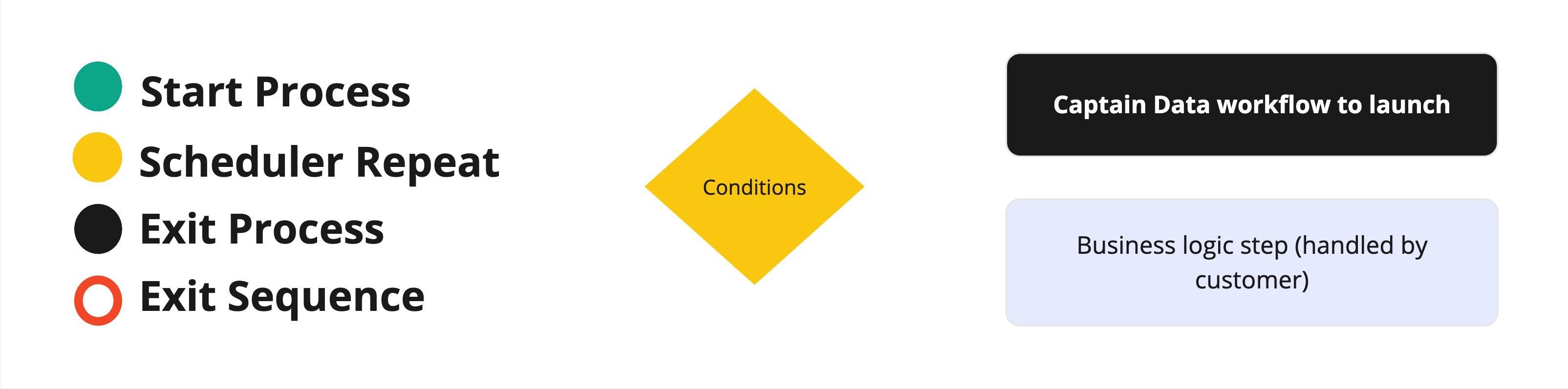 ## Sequence Initialization
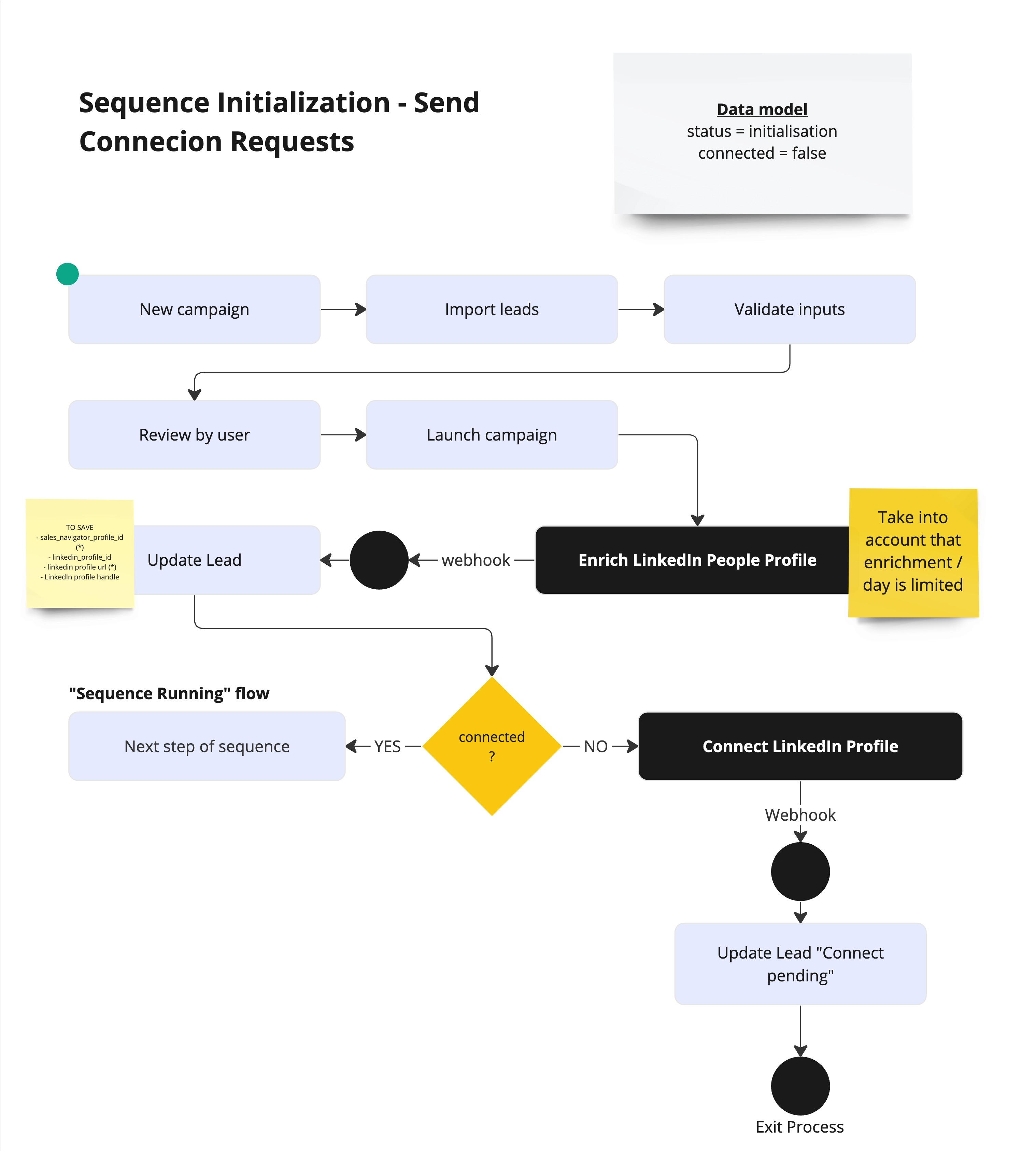
### Connection Degree
Determine the connection degree between your user and the leads to interact with. Based on this information:
* Schedule connection requests using [Connect LinkedIn Profile](/v3/actions/linkedin/engage/invite-profile).
* Move leads to the next step.
## Sequence Initialization
### Connection Degree
Determine the connection degree between your user and the leads to interact with. Based on this information:
* Schedule connection requests using [Connect LinkedIn Profile](/v3/actions/linkedin/engage/invite-profile).
* Move leads to the next step.
 ## Extract Your User's Connections & Detect Accepted Requests
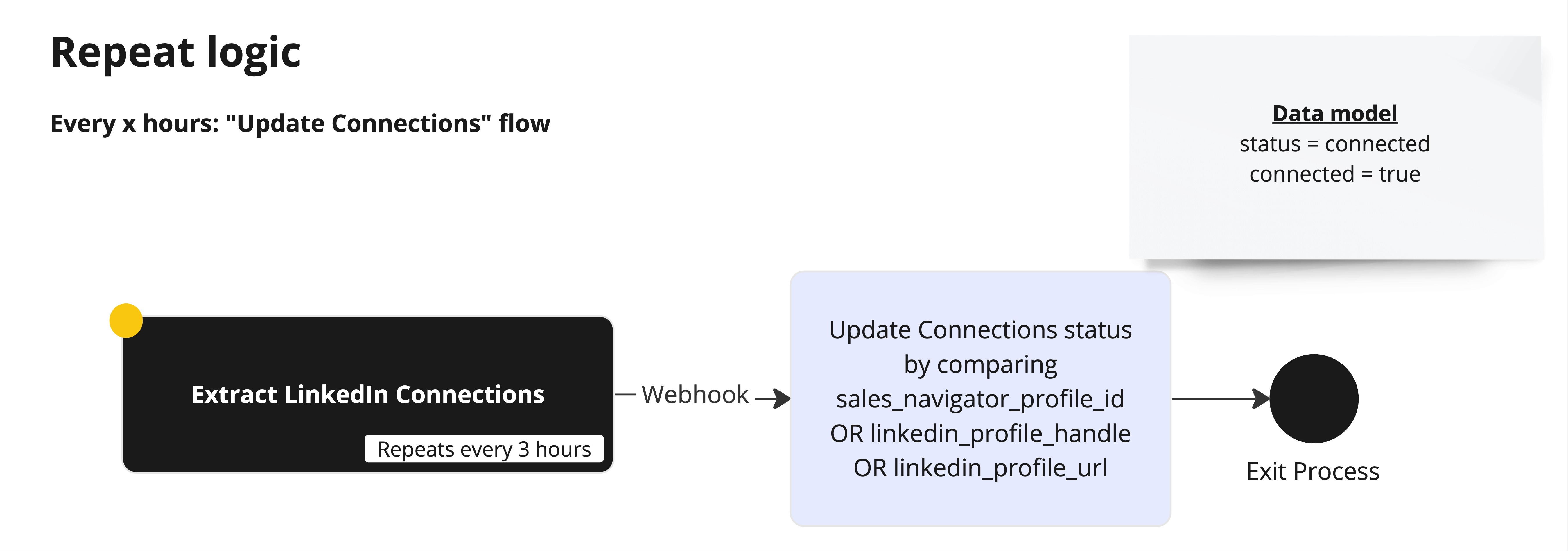
You need to identify when connection requests are accepted using [Extract LinkedIn Connections](/v3/actions/linkedin/engage/extract-connections).
Regularly extract net new LinkedIn connections of the end-user and compare them with leads to engage.
* **Frequency**: Every 3 hours.
* **Parameter**: `max_minutes=180` in concordance with your repeat frequency, here 180 minutes for 3 hours, to ensure you only get new connections.
## Extract Your User's Connections & Detect Accepted Requests
You need to identify when connection requests are accepted using [Extract LinkedIn Connections](/v3/actions/linkedin/engage/extract-connections).
Regularly extract net new LinkedIn connections of the end-user and compare them with leads to engage.
* **Frequency**: Every 3 hours.
* **Parameter**: `max_minutes=180` in concordance with your repeat frequency, here 180 minutes for 3 hours, to ensure you only get new connections.
 Use this JSON body payload when launching a Run (Job):
```json
{
"job_name": "Fetch New Connections",
"steps": [
{
... "parameters": { "max_minutes": 180 },...
}
],
"repeat_option": {
"type": "hour", // minute/hour/day/week/month
"value": 3 // Must be an integer representing the interval
}
}
```
Here is the [Launch a Workflow](/v3/api-reference/workflows/launch-workflow) API Reference to help you.
Using the **Extract LinkedIn Connections** workflow, sync connections every 3 to 6 hours.
This approach ensures a balance between efficiency and adhering to LinkedIn's limits.
Some Key Points:
* **Account limits**: Each account can add up to 100 new connections per week (default batch is 25/day, sending 5 requests every 30 minutes).
* **Pagination**: Returns 40 connections per page.
* **Timing**: Extracting connections multiple times daily optimizes results.
It's generally a good idea to wait before sending a follow-up message. For
example, if a lead accepts a connection Monday at 10 PM, the next message
should ideally be sent the following day. Although in some cases to make it
look more human you could wait just 3 minutes!
## Sequence Running Process
Use this JSON body payload when launching a Run (Job):
```json
{
"job_name": "Fetch New Connections",
"steps": [
{
... "parameters": { "max_minutes": 180 },...
}
],
"repeat_option": {
"type": "hour", // minute/hour/day/week/month
"value": 3 // Must be an integer representing the interval
}
}
```
Here is the [Launch a Workflow](/v3/api-reference/workflows/launch-workflow) API Reference to help you.
Using the **Extract LinkedIn Connections** workflow, sync connections every 3 to 6 hours.
This approach ensures a balance between efficiency and adhering to LinkedIn's limits.
Some Key Points:
* **Account limits**: Each account can add up to 100 new connections per week (default batch is 25/day, sending 5 requests every 30 minutes).
* **Pagination**: Returns 40 connections per page.
* **Timing**: Extracting connections multiple times daily optimizes results.
It's generally a good idea to wait before sending a follow-up message. For
example, if a lead accepts a connection Monday at 10 PM, the next message
should ideally be sent the following day. Although in some cases to make it
look more human you could wait just 3 minutes!
## Sequence Running Process
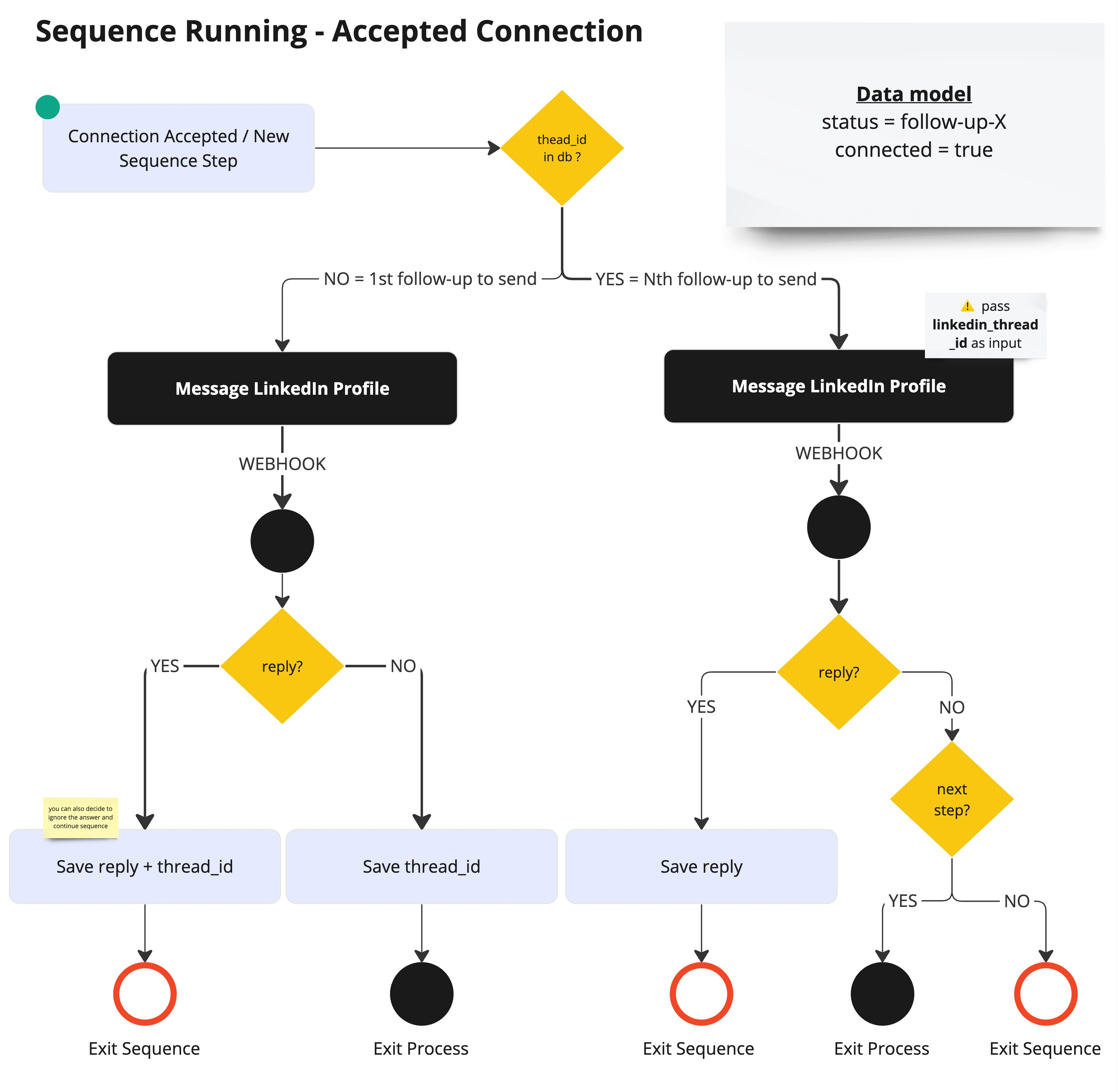 This process is triggered when a connection request has been accepted. You then:
1. Send a LinkedIn message using [Message LinkedIn Profile](/v3/actions/linkedin/messaging/send-message).
2. Detect replies by setting the `check_reply` parameter to `true`, see [Message LinkedIn Profile](/v3/actions/linkedin/messaging/send-message) full documentation.
Save the `linkedin_thread_id` when sending the first message to reuse it for
optimal reply detection.
You can easily fetch all conversations and messages to leverage within your product.
We recommend using the following automated Action:
* [Extract LinkedIn Conversations](https://app.captaindata.co/store/linkedin-conversations-extractor)
* [Extract LinkedIn Messages](https://app.captaindata.co/store/linkedin-message-extractor)
**Check for Replies**: Always check for new replies before sending follow-ups,
even if you're listening at regular intervals.
Don’t wait forever for a connection request to be accepted. Set a clear time
limit.
## Additional Features
Some users add profile visits to their sequences. This can also run as a stand-alone process:
1. Launch Workflow for Profile Visit.
2. Await success webhook.
3. Get results.
4. Update your data model to track the visit action as part of the campaign report.
## Data Models
The following data model is, again, just a quick recommendation. Long-story
short: you'll need leads that you add to campaigns.
This process is triggered when a connection request has been accepted. You then:
1. Send a LinkedIn message using [Message LinkedIn Profile](/v3/actions/linkedin/messaging/send-message).
2. Detect replies by setting the `check_reply` parameter to `true`, see [Message LinkedIn Profile](/v3/actions/linkedin/messaging/send-message) full documentation.
Save the `linkedin_thread_id` when sending the first message to reuse it for
optimal reply detection.
You can easily fetch all conversations and messages to leverage within your product.
We recommend using the following automated Action:
* [Extract LinkedIn Conversations](https://app.captaindata.co/store/linkedin-conversations-extractor)
* [Extract LinkedIn Messages](https://app.captaindata.co/store/linkedin-message-extractor)
**Check for Replies**: Always check for new replies before sending follow-ups,
even if you're listening at regular intervals.
Don’t wait forever for a connection request to be accepted. Set a clear time
limit.
## Additional Features
Some users add profile visits to their sequences. This can also run as a stand-alone process:
1. Launch Workflow for Profile Visit.
2. Await success webhook.
3. Get results.
4. Update your data model to track the visit action as part of the campaign report.
## Data Models
The following data model is, again, just a quick recommendation. Long-story
short: you'll need leads that you add to campaigns.
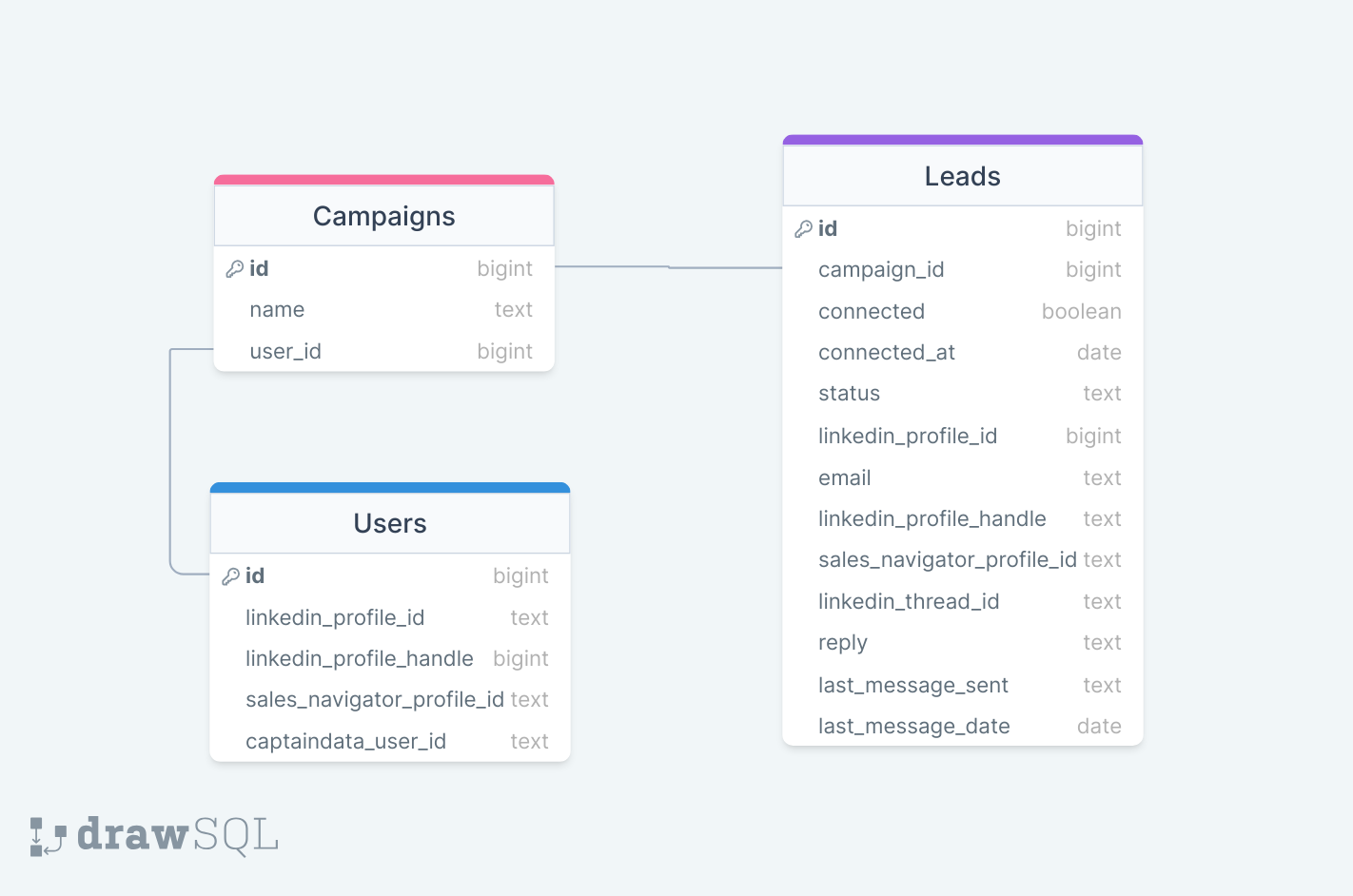 In the lighter version above, all attributes are attached to the Leads and everything is managed from this table.
This is an ideal implementation:
In the lighter version above, all attributes are attached to the Leads and everything is managed from this table.
This is an ideal implementation:
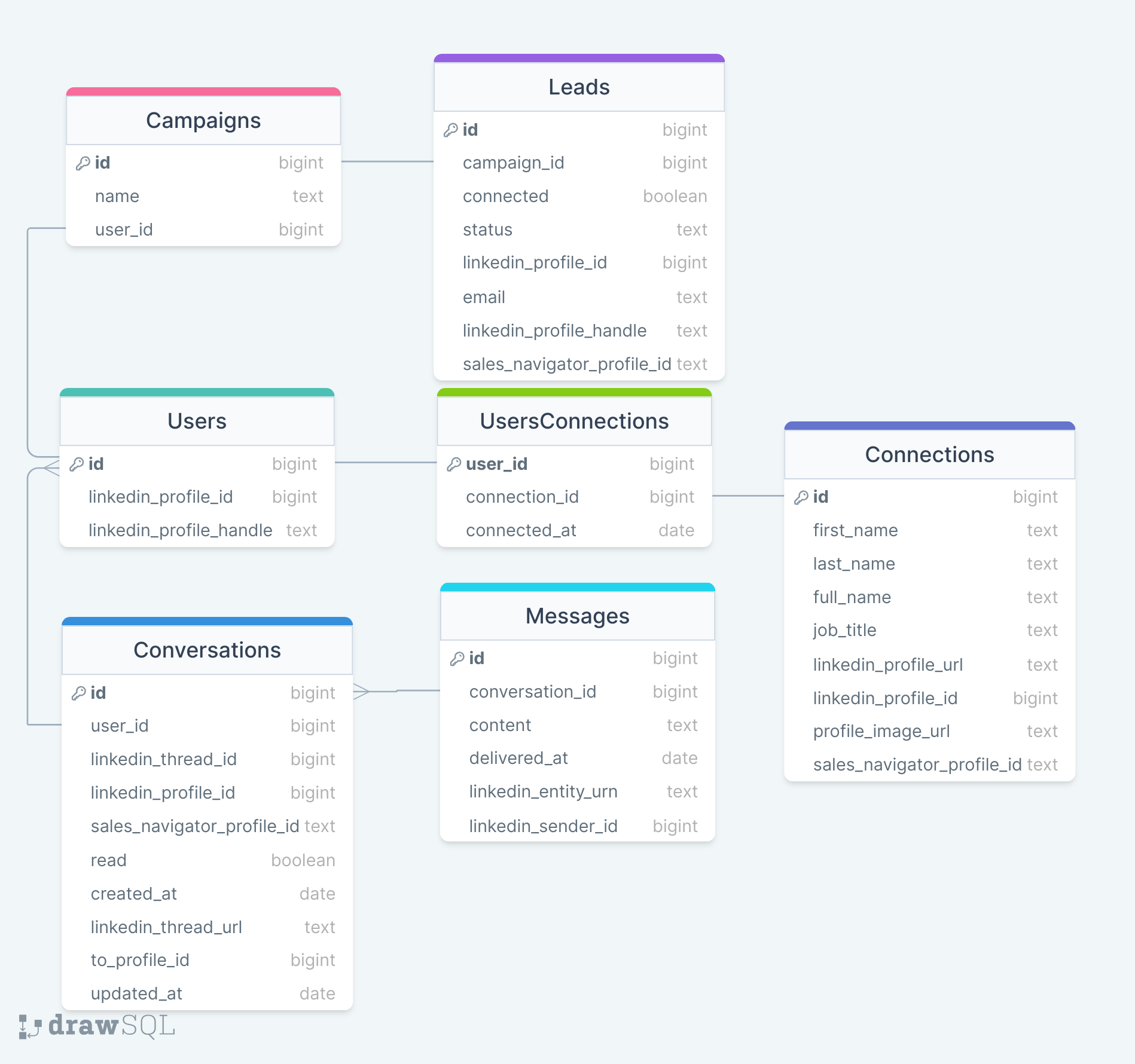 The following data model is recommended for organizing leads:
| Attribute | Purpose |
| ---------------------------- | --------------------------------------------- |
| `linkedin_profile_id` | Unique identifier for deduplication. |
| `linkedin_profile_handle` | To generate profile URLs. |
| `sales_navigator_profile_id` | For triggering automation and URL generation. |
| `linkedin_thread_id` | For fetching conversation messages. |
| `delivered_at` | Timestamp to track message delivery. |
### Connections
You should probably **centralize connections**, as there’s a high probability that User A has similar connections to User B.
* We recommend creating a join between Users and Connections, as described in `UsersConnections`.
* Not doing this means handling duplicates. Since a user can have up to 30,000 connections, this can quickly become a burden for your database.
* Don’t forget to save and add the `connected_at` attribute to know when both accounts connected.
## Actions APIs to Use
* [Extract LinkedIn People Profile](https://app.captaindata.co/store/linkedin-people-profile-api)
* [Visit LinkedIn Profile](https://app.captaindata.co/store/linkedin-people-profile) (optional)
* [Connect LinkedIn Profile](https://app.captaindata.co/store/linkedin-auto-connect)
* [Message LinkedIn Profile](https://app.captaindata.co/store/linkedin-auto-message)
* [Extract LinkedIn Connections](https://app.captaindata.co/store/linkedin-connections-extractor)
* [Extract LinkedIn Conversations](https://app.captaindata.co/store/linkedin-conversations-extractor)
* [Extract LinkedIn Messages](https://app.captaindata.co/store/linkedin-message-extractor)
* [Enrich LinkedIn User Contact Information](https://app.captaindata.co/store/linkedin-profile-contact-info) (optional)
* [Withdraw LinkedIn Pending Invitations](https://app.captaindata.co/store/linkedin-withdraw-pending-invitations) (optional)
* [Like LinkedIn Post](https://app.captaindata.co/store/linkedin-like-post) (optional) It could be interesting to like posts on behalf of users in an ABM campaign.
## Best Practices
1. **Validate LinkedIn URLs**:
* Ensure profile URLs follow the pattern `linkedin.com/in/`.
* Ensure company URLs follow the pattern `linkedin.com/company/`.
2. **Differentiate IDs**:
* Track `linkedin_profile_id` for leads (immutable).
* Save `sales_navigator_profile_id` to trigger automations and regenerate URLs.
3. **Pending Requests**:
* Track if a request exceeds 20 days.
* Withdraw pending invitations to unclutter sent invitations.
You can't use this in a URL like `www.linkedin.com/in/linkedin_profile_id`,
but you can use `www.linkedin.com/in/sales_navigator_profile_id`.
## Data Attributes for Reporting
To give your users a great experience, we recommend keeping track of the following:
| Status | Description |
| ---------- | ---------------------------------- |
| `sent` | Invite or request has been sent. |
| `invited` | Indicates an invite has been sent. |
| `pending` | Notification for pending invites. |
| `accepted` | Lead has connected. |
| `replied` | Reply has been detected. |
| `exit` | Campaign exit conditions met. |
Let us know if you have specific needs or additional features to implement!
The following data model is recommended for organizing leads:
| Attribute | Purpose |
| ---------------------------- | --------------------------------------------- |
| `linkedin_profile_id` | Unique identifier for deduplication. |
| `linkedin_profile_handle` | To generate profile URLs. |
| `sales_navigator_profile_id` | For triggering automation and URL generation. |
| `linkedin_thread_id` | For fetching conversation messages. |
| `delivered_at` | Timestamp to track message delivery. |
### Connections
You should probably **centralize connections**, as there’s a high probability that User A has similar connections to User B.
* We recommend creating a join between Users and Connections, as described in `UsersConnections`.
* Not doing this means handling duplicates. Since a user can have up to 30,000 connections, this can quickly become a burden for your database.
* Don’t forget to save and add the `connected_at` attribute to know when both accounts connected.
## Actions APIs to Use
* [Extract LinkedIn People Profile](https://app.captaindata.co/store/linkedin-people-profile-api)
* [Visit LinkedIn Profile](https://app.captaindata.co/store/linkedin-people-profile) (optional)
* [Connect LinkedIn Profile](https://app.captaindata.co/store/linkedin-auto-connect)
* [Message LinkedIn Profile](https://app.captaindata.co/store/linkedin-auto-message)
* [Extract LinkedIn Connections](https://app.captaindata.co/store/linkedin-connections-extractor)
* [Extract LinkedIn Conversations](https://app.captaindata.co/store/linkedin-conversations-extractor)
* [Extract LinkedIn Messages](https://app.captaindata.co/store/linkedin-message-extractor)
* [Enrich LinkedIn User Contact Information](https://app.captaindata.co/store/linkedin-profile-contact-info) (optional)
* [Withdraw LinkedIn Pending Invitations](https://app.captaindata.co/store/linkedin-withdraw-pending-invitations) (optional)
* [Like LinkedIn Post](https://app.captaindata.co/store/linkedin-like-post) (optional) It could be interesting to like posts on behalf of users in an ABM campaign.
## Best Practices
1. **Validate LinkedIn URLs**:
* Ensure profile URLs follow the pattern `linkedin.com/in/`.
* Ensure company URLs follow the pattern `linkedin.com/company/`.
2. **Differentiate IDs**:
* Track `linkedin_profile_id` for leads (immutable).
* Save `sales_navigator_profile_id` to trigger automations and regenerate URLs.
3. **Pending Requests**:
* Track if a request exceeds 20 days.
* Withdraw pending invitations to unclutter sent invitations.
You can't use this in a URL like `www.linkedin.com/in/linkedin_profile_id`,
but you can use `www.linkedin.com/in/sales_navigator_profile_id`.
## Data Attributes for Reporting
To give your users a great experience, we recommend keeping track of the following:
| Status | Description |
| ---------- | ---------------------------------- |
| `sent` | Invite or request has been sent. |
| `invited` | Indicates an invite has been sent. |
| `pending` | Notification for pending invites. |
| `accepted` | Lead has connected. |
| `replied` | Reply has been detected. |
| `exit` | Campaign exit conditions met. |
Let us know if you have specific needs or additional features to implement!