> ## Documentation Index
> Fetch the complete documentation index at: https://v3.captaindata.com/llms.txt
> Use this file to discover all available pages before exploring further.
# Quickstart
> Welcome to Captain Data's API implementation guide.
**Important Sunset Notice**
* We will totally deprecate and sunset the v3 as of 31st December 2025.
* The new version will be "v1" on a brand new product.
* Reach out to [support@captaindata.com](mailto:support@captaindata.com) for more information on migration possibilities.
This guide will help you launch workflows, manage API jobs, and make the most of our platform. Follow the steps below to get up and running quickly.
## **1. Introduction to the Captain Data API**
The Captain Data API allows you to automate workflows, extract data, and integrate powerful tools into your processes. Whether you’re building custom integrations or scaling operations, the API offers flexibility and efficiency.
For more details, see our [API Reference Documentation](/v3/api-reference/introduction).
## **2. Setting Up the API**
Follow these steps to get started to get your API Key:
1. Log in to your Captain Data account.
2. Navigate to the [My Account > General](https://app.captaindata.co/settings) section in your workspace.
3. Copy your API key.
Keep your API key secure—treat it like a password.
## 3. Setting up your workspace
In the “[My Workflows](https://app.captaindata.co/workflows?folder=home)” section, we recommend creating the following folders to organize your workspace:
* **Staging:** Use this folder to test your workflow implementations before deploying them.
* **Production:** Once tested and finalized, duplicate your workflows into this folder for live use.
**Home** is the default folder provided by the platform. It cannot be deleted.
## 4. Launching Workflows
### **Understanding Workflows**
A **Workflow** is a sequence of action steps that extracts, processes, and delivers data.
A **Run** (ex-Job) refers to the execution of a workflow. For a single workflow, you can have multiple **Runs** over time,
e.g. one workflow may be executed daily, resulting in numerous Runs.
### **How to Launch a Workflow**
1. On the [Captain Data platform](https://app.captaindata.co/store), identify the workflow(s) you want to launch (e.g. [Extract LinkedIn People Profile](https://app.captaindata.co/store/linkedin-people-profile-api))
2. Click on **“Try it”**, and select the folder you want to create the workflow in (e.g. **Staging**)
3. Once selected, the workflow will be created in the specified folder—it’s as if you’ve just generated an API endpoint for it.
4. Navigate to the workflow in your folder and locate the **Workflow UID** in the URL.
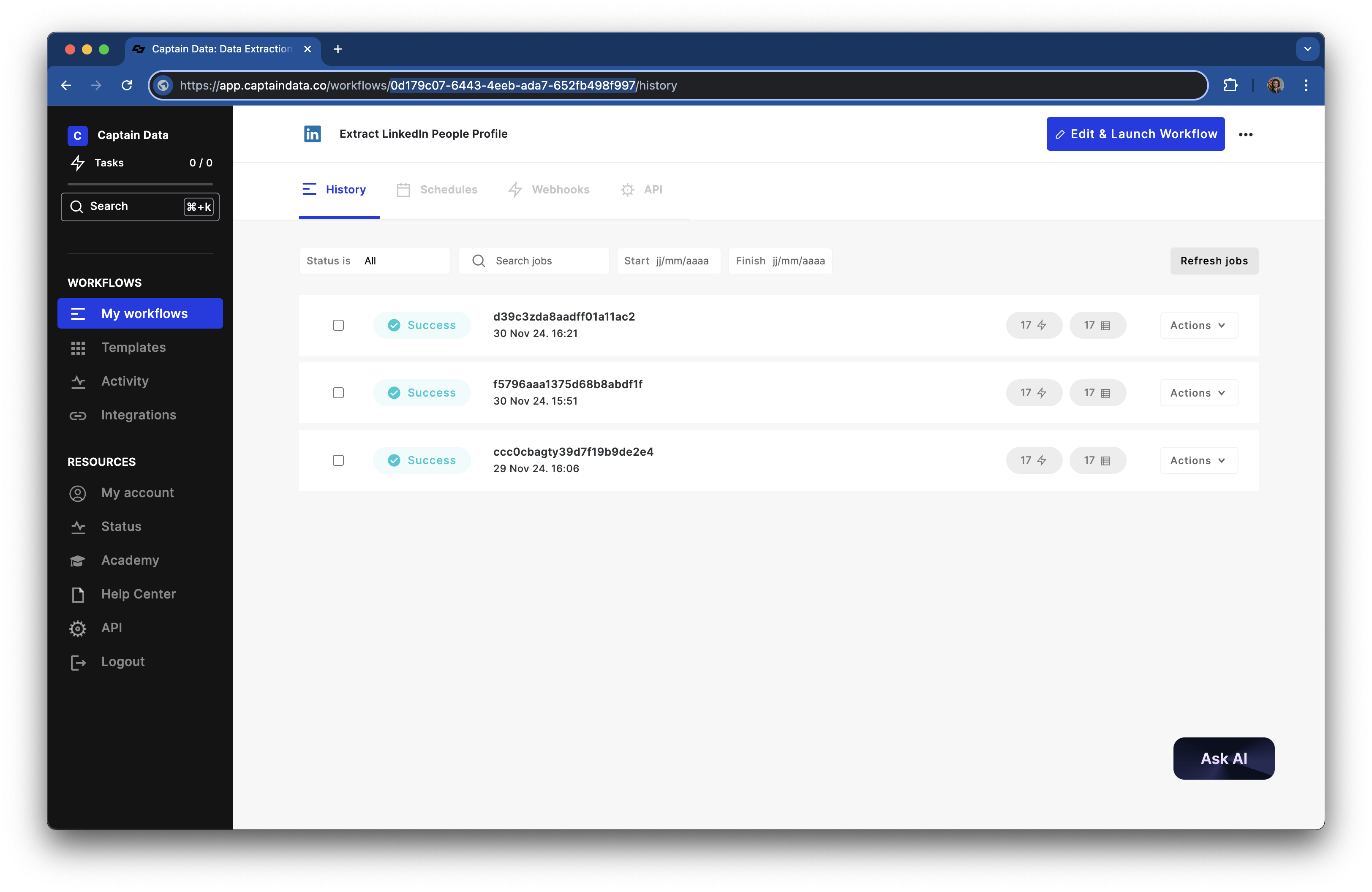 Use the [Launch a Workflow](/v3/api-reference/workflows/launch-workflow)
endpoint to run a workflow.
Open your workflow’s edition page to make an initial configuration. Next,
navigate to the workflow’s **API Playground** and use the generated request
body to schedule the workflow.
Example of a generated cURL to schedule a flow:
```bash
curl --location 'https://api.captaindata.co/v3/workflows/{{workflow_uid}}/schedule' \
--header 'Content-Type: application/json' \
--header 'Authorization: x-api-key ' \
--header 'x-project-id: YOUR_PROJECT_UID' \
--data '{
"steps": [
{
"accounts": [
"{{account_uid}}"
],
"parameters": {
"max_results": 100
},
"output_column": null,
"accounts_rotation_enabled": false,
"step_uid": "abyet-6a22-4d84-a687-91a369a45105"
}
],
"unstructure_meta": false,
"inputs": [
{
"linkedin_post_url": "https://www.linkedin.com/feed/update/urn:li:activity:6531440905390424064/"
}
],
"job_name": "JSON example to schedule a flow using the API."
}'
```
## **5. Managing Workflow Runs**
When you execute a workflow, a **run** is generated along with a **run (job) UID**, which you can find in the response of the **Launch a Workflow** API call.
### **Check Workflow Status**
You can monitor the progress of your Run using the [Get a Run](/v3/api-reference/runs/get-workflow-job) endpoint that points to `https://api.captaindata.co/v3/jobs/:job_uid`.
**Response Fields:**
```json
{
"uid": "xxxxxxxxxxx-xxxxx-49be-9e21-d8037d1e393b",
"name": "Test job via API",
"status": "finished",
"start_time": "2024-11-26T18:21:03.019011+00:00",
"scheduled_time": null,
"finish_time": "2024-11-26T18:21:09.082904+00:00",
"row_count": 1,
"total_row_count": 1,
"error_message": null,
"workflow_name": "Extract LinkedIn People Profile",
"workflow_uid": "xxxxxxxx-xxxxxx-4eeb-ada7-652fb498f540",
"main_job_uid": null,
"main_job_name": null,
"configuration": {},
"accounts": [],
"number_inputs": 1
}
```
### **Common Job Statuses**
| **Status** | **Description** |
| ----------- | ----------------------------------------------------------------------------------------------------------------------------------------------- |
| `running` | Workflow is in progress. |
| `completed` | Workflow finished successfully (with results or not). |
| `shutdown` | Automation triggered an error, usually due to a technical issue retrieved from a 3rd-party API or on our end. |
| `warning` | Automation triggered a warning, often a functional error (e.g. bad input). Retry using the “Retry a job” endpoint. |
| `pending` | The Run is waiting to be processed. |
| `stopped` | The Run was manually stopped by the user. |
| `paused` | The Run was paused due to an integration error (e.g. invalid cookies, invalid OAuth credentials, etc.). Retry using the “Retry a job” endpoint. |
### **Retrieve Run Results**
Once the run is marked as completed, you can fetch the results using the same run UID.
The results will be included in the response of the [Get a Run's Results](/v3/api-reference/runs/get-job-results) request with the route `/v3/jobs/:job_uid/results`.
Results are returned with the following structure:
```json
{
"items_count": 100,
"pages": 1,
"limit": 1000,
"results": [ ... ],
"paging": {
"previous": null,
"next": null,
"have_next_page": false
}
}
```
### **Handling Run Updates with Webhooks**
To handle workflow executions asynchronously and improve scalability, Captain Data provides webhook support. With webhooks, you can receive real-time notifications when the status of a job changes (e.g., success, created or failed).
**Setting Up a Webhook**:
1. Navigate to the workflow you want to add a webhook on
2. Configure your webhook URL in the Captain Data platform under the **Webhook** section
3. The webhook will send a POST request to your specified URL whenever a run status changes
## **6. Best Practices and Troubleshooting**
* **Start small:** When using the API, we suggest testing with a small batch of inputs first. This allows you to validate your setup and ensure everything works smoothly before scaling your processes.
* **Rate Limits**: Be mindful of rate limits to avoid unnecessary throttling ([learn more here](https://support.captaindata.com/en/articles/10725104-rate-limiting-on-workflows)).
Use the [Launch a Workflow](/v3/api-reference/workflows/launch-workflow)
endpoint to run a workflow.
Open your workflow’s edition page to make an initial configuration. Next,
navigate to the workflow’s **API Playground** and use the generated request
body to schedule the workflow.
Example of a generated cURL to schedule a flow:
```bash
curl --location 'https://api.captaindata.co/v3/workflows/{{workflow_uid}}/schedule' \
--header 'Content-Type: application/json' \
--header 'Authorization: x-api-key ' \
--header 'x-project-id: YOUR_PROJECT_UID' \
--data '{
"steps": [
{
"accounts": [
"{{account_uid}}"
],
"parameters": {
"max_results": 100
},
"output_column": null,
"accounts_rotation_enabled": false,
"step_uid": "abyet-6a22-4d84-a687-91a369a45105"
}
],
"unstructure_meta": false,
"inputs": [
{
"linkedin_post_url": "https://www.linkedin.com/feed/update/urn:li:activity:6531440905390424064/"
}
],
"job_name": "JSON example to schedule a flow using the API."
}'
```
## **5. Managing Workflow Runs**
When you execute a workflow, a **run** is generated along with a **run (job) UID**, which you can find in the response of the **Launch a Workflow** API call.
### **Check Workflow Status**
You can monitor the progress of your Run using the [Get a Run](/v3/api-reference/runs/get-workflow-job) endpoint that points to `https://api.captaindata.co/v3/jobs/:job_uid`.
**Response Fields:**
```json
{
"uid": "xxxxxxxxxxx-xxxxx-49be-9e21-d8037d1e393b",
"name": "Test job via API",
"status": "finished",
"start_time": "2024-11-26T18:21:03.019011+00:00",
"scheduled_time": null,
"finish_time": "2024-11-26T18:21:09.082904+00:00",
"row_count": 1,
"total_row_count": 1,
"error_message": null,
"workflow_name": "Extract LinkedIn People Profile",
"workflow_uid": "xxxxxxxx-xxxxxx-4eeb-ada7-652fb498f540",
"main_job_uid": null,
"main_job_name": null,
"configuration": {},
"accounts": [],
"number_inputs": 1
}
```
### **Common Job Statuses**
| **Status** | **Description** |
| ----------- | ----------------------------------------------------------------------------------------------------------------------------------------------- |
| `running` | Workflow is in progress. |
| `completed` | Workflow finished successfully (with results or not). |
| `shutdown` | Automation triggered an error, usually due to a technical issue retrieved from a 3rd-party API or on our end. |
| `warning` | Automation triggered a warning, often a functional error (e.g. bad input). Retry using the “Retry a job” endpoint. |
| `pending` | The Run is waiting to be processed. |
| `stopped` | The Run was manually stopped by the user. |
| `paused` | The Run was paused due to an integration error (e.g. invalid cookies, invalid OAuth credentials, etc.). Retry using the “Retry a job” endpoint. |
### **Retrieve Run Results**
Once the run is marked as completed, you can fetch the results using the same run UID.
The results will be included in the response of the [Get a Run's Results](/v3/api-reference/runs/get-job-results) request with the route `/v3/jobs/:job_uid/results`.
Results are returned with the following structure:
```json
{
"items_count": 100,
"pages": 1,
"limit": 1000,
"results": [ ... ],
"paging": {
"previous": null,
"next": null,
"have_next_page": false
}
}
```
### **Handling Run Updates with Webhooks**
To handle workflow executions asynchronously and improve scalability, Captain Data provides webhook support. With webhooks, you can receive real-time notifications when the status of a job changes (e.g., success, created or failed).
**Setting Up a Webhook**:
1. Navigate to the workflow you want to add a webhook on
2. Configure your webhook URL in the Captain Data platform under the **Webhook** section
3. The webhook will send a POST request to your specified URL whenever a run status changes
## **6. Best Practices and Troubleshooting**
* **Start small:** When using the API, we suggest testing with a small batch of inputs first. This allows you to validate your setup and ensure everything works smoothly before scaling your processes.
* **Rate Limits**: Be mindful of rate limits to avoid unnecessary throttling ([learn more here](https://support.captaindata.com/en/articles/10725104-rate-limiting-on-workflows)).