

This guide is a bit technical; you’ll potentially need the help of a developer
for the following steps.
Source Code
Complete source code is available on
GitHub.
Coding Tips
Overall proces:- The extension retrieves cookies (
li_at,li_a), stores them in local storage, and uses them for authentication. - A process is already in place to update these cookies every hour using
chrome.alarms.onAlarm.
- The front-end sends a message to the extension (e.g.,
msg_fetch_cookies). - The extension responds by retrieving cookies and storing them in Chrome’s local storage first.
- You can check logs in Google Chrome > Extensions > Manage Extension > Service Workers.
- Use console.log to debug issues.
- Store cookies by YOUR User ID (internal), Captain Data User ID, and Account ID to avoid mix-ups.
- Use
chrome.storage.local.set()to store data.
Store Listing Tips
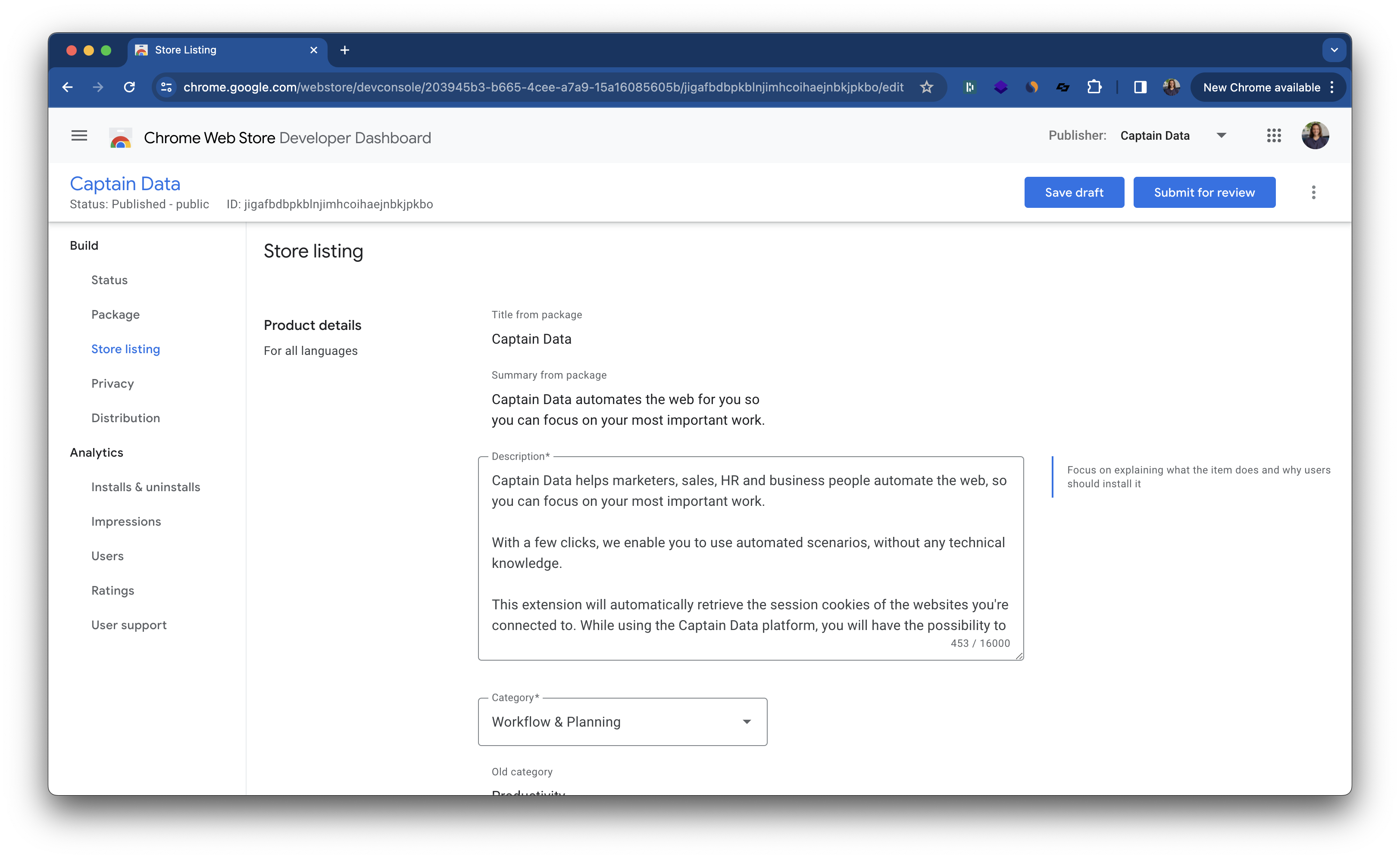
Store Listing Tab on Developer Dashboard
- Fill in the Store Listing Thoroughly: Pay special attention to the “Privacy” section.
- Minimize Permissions: By following our coding tips and requesting only the minimal necessary permissions, you can avoid complications during Google’s review process.
Updating Your Extension
To update your Chrome Extension:- Change the version number inside the
manifest.jsonfile. - Zip the updated files.
- Click on “Upload new package” in the Chrome Web Store dashboard under Menu > Package.
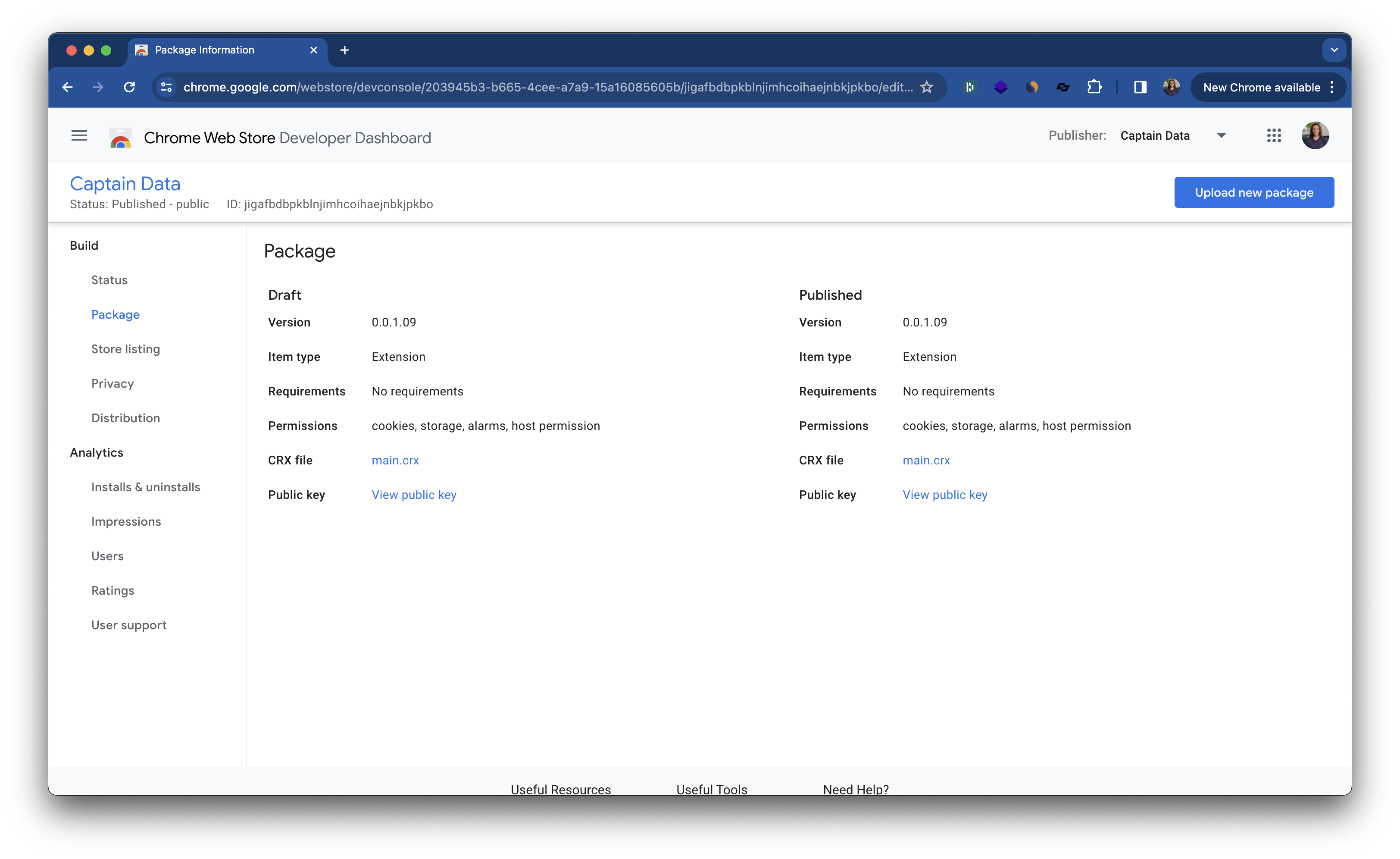
Update Your Extension's Version