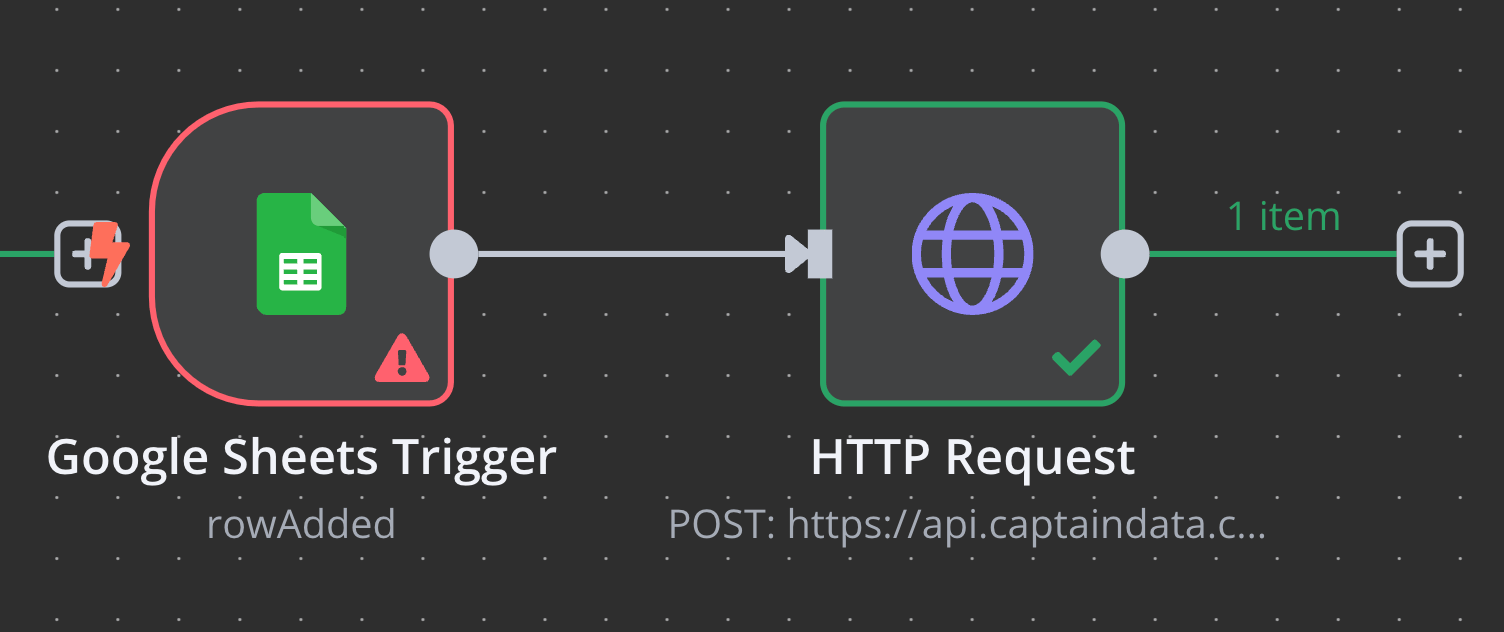
Check out this guide to learn how to configure the ‘HTTP Request’ module for launching a workflow with Captain Data in n8n:
Prerequisites
Before setting up the module, ensure you have a data source in place. This could be:
- A CRM (e.g., HubSpot)
- A spreadsheet (e.g., Google Sheets)
- Notion
- A workflow launched from Slack
Captain Data does not natively support triggering a workflow when a new row is
added to a spreadsheet. To achieve this, use n8n’s Google Sheets Trigger
Module (rowAdded).
1. Import the Blueprint
Copy and paste the following JSON into n8n to create your workflow:
{
"name": "My workflow 2",
"nodes": [
{
"parameters": {},
"type": "n8n-nodes-base.manualTrigger",
"typeVersion": 1,
"position": [0, 0],
"id": "38ce240e-5ef9-46de-90a8-f46be3977c6d",
"name": "When clicking ‘Test workflow’"
},
{
"parameters": {
"method": "POST",
"url": "https://api.captaindata.co/v3/workflows/{{your_workflow_id}}/schedule",
"authentication": "genericCredentialType",
"genericAuthType": "httpHeaderAuth",
"sendHeaders": true,
"headerParameters": {
"parameters": [
{
"name": "x-project-id",
"value": "YOUR_PROJECT_ID"
}
]
},
"sendBody": true,
"specifyBody": "json",
"jsonBody": "{\n \"steps\": [\n {\n \"accounts\": [],\n \"parameters\": {\n \"max_results\": 10,\n \"only_extract_unique_profile\": false\n },\n \"output_column\": null,\n \"accounts_rotation_enabled\": true,\n \"step_uid\": \"5de5a752-88cb-4974-93a9-943bd9d301c3\"\n }\n ],\n \"unstructure_meta\": false,\n \"inputs\": [\n {\n \"linkedin_people_search_url\": \"https://www.linkedin.com/search/results/people/?keywords=Solution%20Engineer&origin=GLOBAL_SEARCH_HEADER&sid=1LL\"\n }\n ],\n \"job_name\": \"Json example to send on api point to schedule.\"\n}",
"options": {}
},
"type": "n8n-nodes-base.httpRequest",
"typeVersion": 4.2,
"position": [220, 0],
"id": "c68dae83-ed5d-4696-b5e7-10d9fc6ee1b9",
"name": "HTTP Request"
}
],
"connections": {
"When clicking ‘Test workflow’": {
"main": [
[
{
"node": "HTTP Request",
"type": "main",
"index": 0
}
]
]
}
},
"active": false,
"settings": {
"executionOrder": "v1"
},
"versionId": "593d4e5f-7b55-48d5-9540-dbe0790e3896"
}
- Navigate to Captain Data and copy the workflow ID.
- Paste it into the HTTP module’s URL in n8n.
- Go to your general settings in Captain Data.
- In n8n’s HTTP module, update the following:
- Header Authentication: Add your API key.
- Header Parameters: Include your Project ID (
x-project-id).